If you want a fast, practical way to turn ideas into short clips, Grok Imagine AI video generation is built for exactly that: quick concept videos, social shorts, ad variations, and visual “mood shots” that would normally take a full production setup.
In this tutorial, you’ll learn two reliable workflows on Chat4O:
- Grok Imagine text to video: write a scene prompt → generate a clip.
- Grok Imagine image to video: start from a still image → animate it into motion (often best for consistency).
You’ll also get ready-to-use prompt templates and copy/paste examples you can run immediately—plus a shortlist of other Chat4O tools at the end to complete your workflow.
What you’ll make in this tutorial
By the end, you’ll have:
- A short cinematic clip created with Grok Imagine AI video generation using the text-first method.
- A second clip using Grok Imagine image to video to animate a still into clean, controlled motion.
- A reusable prompt “formula” you can keep as your personal template.
If you’re creating content for TikTok/Reels/Shorts, this approach is designed to help you produce multiple variations quickly without losing the look and feel you want.
Quick intro: what is Grok Imagine?
At a high level, Grok Imagine AI video lets you generate a short video clip from either:
- Text to video: you describe what happens, how it’s shot, and the style.
- Image to video: you provide a starting image (your own, or generated), and tell the model what should move.
You may also see it described as a Grok Imagine video generator, a Grok Imagine AI video tool, or a Grok Imagine video maker—they’re all referring to the same idea: generating short video outputs with prompts.
Why use Grok Imagine on Chat4O?
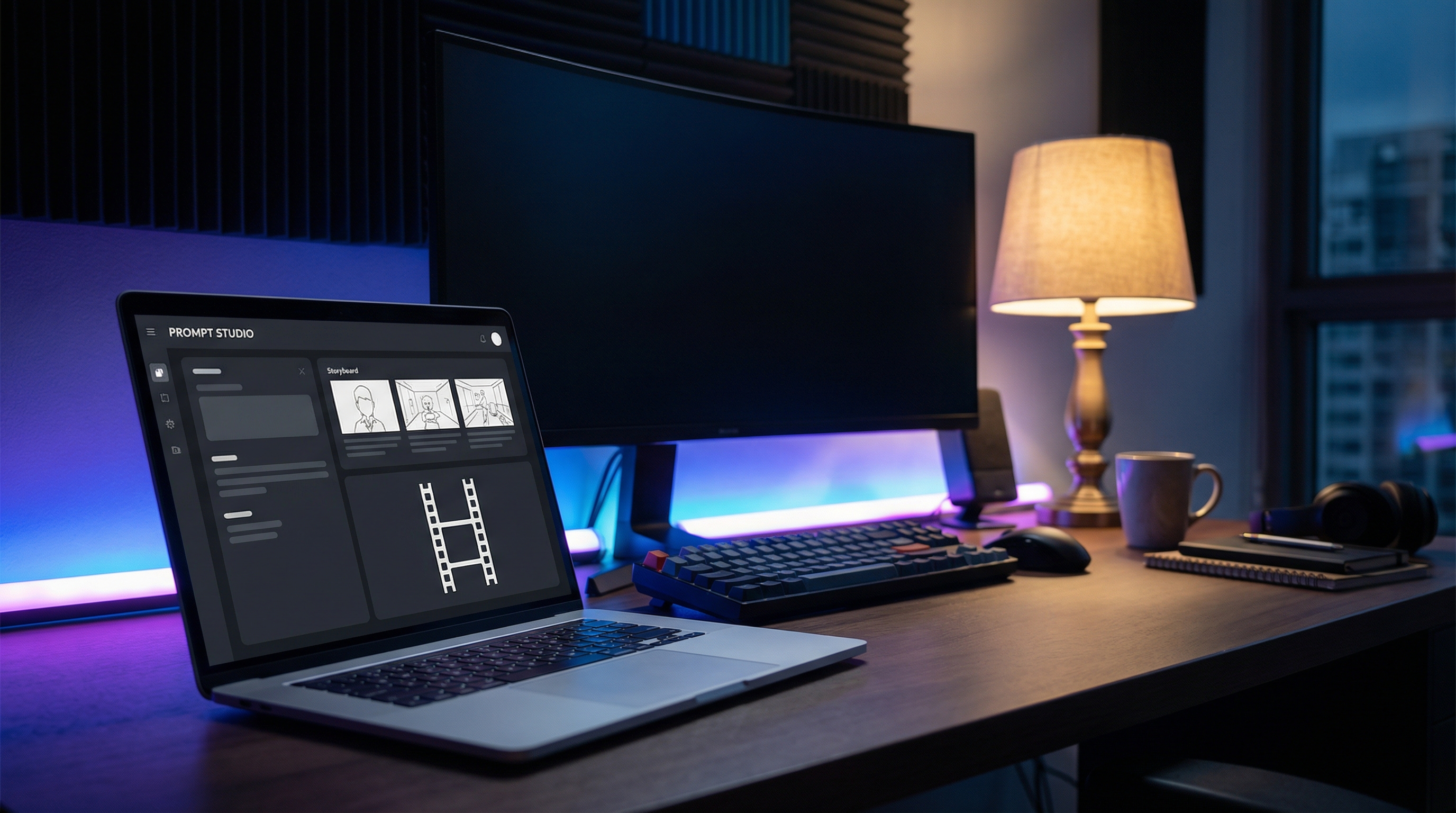
Chat4O is ideal as a “prompt studio” because it can help you:
- Brainstorm and refine prompts quickly (so you’re not guessing).
- Generate a clean reference image first (optional, but powerful).
- Try multiple video tools in one place when you need alternatives.
The simple workflow (recommended)
Use this loop for your first few runs:
- Plan the shot (15 seconds): subject + location + one action.
- Write the prompt in Chat4O (use the templates below).
- Generate with Grok Imagine.
- Iterate once by changing only one variable (camera or motion or style).
That “one change at a time” rule is the easiest way to improve results without accidentally breaking what already works.
Before you start: set your goal (30 seconds)
Copy/paste this mini-brief into Chat4O and fill it in. This makes your prompt clearer and your output more predictable:
- Platform: TikTok / Reels / Shorts / Ads
- Aspect ratio: 9:16 / 16:9 / 1:1
- Mood: cinematic / cozy / energetic / documentary / dreamy
- Subject: character / product / place / creature / vehicle
- Motion: slow dolly / handheld / orbit / push-in / parallax
- Audio: ambient / music / dialogue / none
A common mistake in Grok Imagine AI video generation is trying to “direct a whole movie” in one prompt. Keep it small: one shot, one main action, one camera move.
Part 1 — Grok Imagine text to video on Chat4O
Text-first is the fastest way to generate a scene from scratch. The goal is to write a prompt that feels “filmable.”
Step 1 — Draft a scene that’s easy to visualize
A strong Grok Imagine text to video prompt usually has:
- One location (alley, kitchen, studio table, forest path).
- One subject (a person, a product, a creature, one vehicle).
- One action (walks forward, pours, opens, turns, reveals).
Prefer simple verbs:
- walk, turn, open, pour, reveal, lift, look up, smile, step back
Avoid stacking too many actions in one prompt. If you want multiple beats, generate multiple clips.
Step 2 — Add camera + lighting + pacing
This is where your clip stops looking random and starts looking directed.
Camera ideas (choose ONE):
- slow dolly-in
- slow orbit around subject
- tracking shot from behind
- handheld documentary feel
- crane-down reveal
Lighting ideas (choose 1–2):
- golden hour
- neon night
- softbox studio lighting
- candlelit interior
- overcast outdoor light
Pacing (one word is enough):
- slow, medium, energetic
If you’re aiming for cleaner results, “slow + subtle motion” usually wins.
Step 3 — Generate, then iterate with small edits
For your first run:
- Keep the prompt straightforward.
- Don’t overload style keywords.
- Focus on subject + action + camera.
For your second run:
- Change only one variable.
Examples of “one-variable” changes:
- Same prompt, but swap camera: “slow dolly-in” → “slow orbit.”
- Same prompt, but reduce motion: “wind whipping” → “gentle breeze.”
- Same prompt, but adjust style: “cinematic realistic” → “anime clean line art.”
This is the simplest way to control a Grok Imagine video generator workflow without losing what’s already working.
Text-to-video prompt template (copy/paste)
Use this template as your default for Grok Imagine AI video generation.
Subject: {WHO/WHAT}
Scene: {WHERE}
Action: {WHAT HAPPENS}
Camera: {SHOT + MOVEMENT}
Style: {REALISTIC / ANIME / 3D / RETRO}
Lighting: {LIGHTING}
Audio (optional): {AMBIENT / MUSIC / DIALOGUE}
Constraints: no on-screen text, no logos, stable background, consistent character
How to fill it in (quick examples)
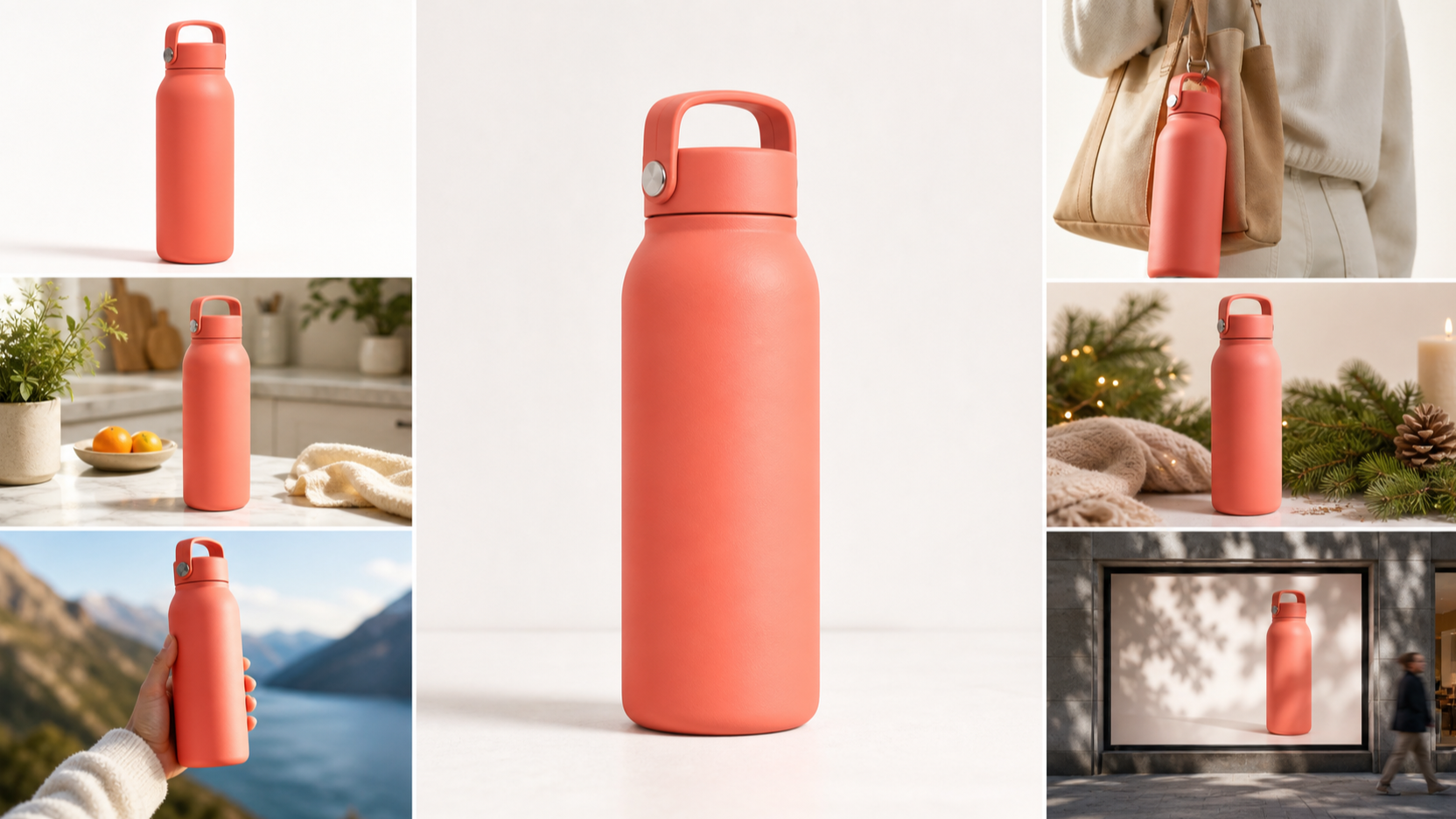
- Subject: “a barista in a cozy café” / “a minimalist skincare bottle”
- Action: “pours latte art” / “rotates slightly, catches light”
- Camera: “macro close-up, slow push-in”
- Style: “cinematic realistic”
- Lighting: “soft warm indoor lighting”
Part 2 — Grok Imagine image to video (best for consistency)
If you care about consistent faces, outfits, product shapes, or overall composition, Grok Imagine image to video is often the more reliable path.
The trick is simple: tell the model what should move, and what must NOT move.
Step 1 — Get a strong start frame
Your start frame can be:
- Your own photo or product image
- A character illustration you created
- A reference image generated inside Chat4O (recommended for quick prototyping)
If the starting image is clean and well-composed, the motion tends to look cleaner too.
Step 2 — Define motion boundaries
In image-to-video, you get better outcomes when you specify motion like a director:
Good things to move:
- hair, fabric, smoke, fog, water, light particles
- subtle facial expressions
- small hand gestures
- camera parallax / gentle push-in
Things you typically want stable:
- face identity and proportions
- product shape and label placement
- background geometry (walls, buildings)
- text or UI elements (best: avoid text entirely)
When users say “image-to-video is glitchy,” it’s often because the prompt didn’t set boundaries.
Step 3 — Add “motion realism” keywords
If you want natural motion, keywords like these often help:
- subtle, gentle, natural
- smooth acceleration
- physics-based movement
- stable background
- consistent identity
If you want stylized motion (on purpose), say so explicitly (e.g., “surreal melting transitions”). Otherwise, keep motion grounded.
Image-to-video prompt template (copy/paste)
Animate this image into a short clip. Keep the subject identity and composition consistent.

Motion: {SUBTLE / NORMAL / ENERGETIC} — {WHAT MOVES}
Camera: {SLOW DOLLY / ORBIT / HANDHELD}
Style: {CINEMATIC / ANIME / REALISTIC}
Lighting: match the original, add soft highlights
Background: stable, no scene change
Constraints: no extra limbs, no face swap, no text, no logo
A small note: constraints aren’t about being “negative”—they’re about saving you iterations.
Ready-to-use prompt examples (copy/paste)
Below are prompts you can run immediately. You can use them as-is or swap the subject and setting.
1) Cinematic mini-scene (Text to Video)
A lone traveler steps into a rain-wet alley at night, neon signs reflecting on the pavement. Slow dolly-in, shallow depth of field, gentle mist drifting. The traveler pauses, looks up, then walks forward. Cinematic lighting, realistic motion, subtle ambient city audio. No text, no logos.
2) Anime-style action beat (Text to Video)
An anime swordsman stands on a cliff at sunrise, wind gently moving his coat and hair. The camera orbits slowly as he draws the blade; a brief glint of light flashes, then he relaxes. Clean line art, vivid color grading, smooth animation timing, dramatic but controlled. No subtitles, no text.
3) Product ad pour shot (Text to Video)
A chilled glass on a studio table. A sparkling drink pours in, bubbles rising, condensation forming on the glass. Macro close-up, slow push-in, softbox lighting, premium commercial aesthetic, clean background. Add light fizzy sound, no brand logos, no on-screen text.
4) “Bring a photo to life” (Image to Video)
Animate this image into a short clip. Keep the subject identity and composition consistent.
Motion: subtle — gentle breeze moves hair and clothing slightly; faint floating particles in the air.
Camera: slow push-in.
Style: cinematic realistic.
Lighting: match the original, add soft highlights.
Background: stable, no scene change.
Constraints: no text, no distortions, no extra limbs.
5) UGC-style handheld talking shot (Image to Video)
Animate this image into a handheld smartphone-style clip: tiny natural camera shake, the subject smiles and makes a small hand gesture. Keep facial identity consistent, avoid exaggerated mouth motion. Bright indoor lighting, clean background. No captions, no text.
These examples cover cinematic, anime, product ad, and UGC-style motion—the most common use cases for a Grok Imagine AI video tool.
Prompt upgrade tricks (quick wins)
If your output is “almost good,” these small edits usually help more than rewriting everything.
1) Add one clear action
Instead of “a person in a café,” make it:
- “a person stirs coffee, then looks up”
One action gives the model a story beat.
2) Use one camera move
Pick one:
- “slow dolly-in”
- “slow orbit”
- “handheld documentary feel”
Too many camera instructions often create unstable motion.
3) Add 2–3 quality anchors
Try any of these:
- “natural motion”
- “stable background”
- “consistent character”
- “smooth timing”
- “physics-based movement”
4) Keep constraints explicit
Even a single line like this helps:
- “No on-screen text, no logos, no distortions.”
Common issues (and fast fixes)
Flicker, warping, or unstable backgrounds
Try:
- Reduce motion intensity: “energetic” → “subtle”
- Add: “stable background, smooth motion”
- Use image-to-video when possible
Character identity drifts
Try:
- Switch to Grok Imagine image to video with a strong reference image
- Add: “keep face and outfit consistent”
- Keep the shot shorter and the motion subtler
Too chaotic / too many effects
Try:
- Remove extra keywords (especially multiple effects)
- Choose one camera move
- Use “controlled, subtle motion”
Style doesn’t match what you want
Try adding just 2–3 style anchors:
- “cinematic, shallow depth of field, realistic timing”
- “anime clean line art, vivid colors, smooth animation”
- “premium product ad, softbox lighting, macro close-up”
You’ll get more predictable results than adding a long list of aesthetics.
Safety + creator-friendly guidelines
A few best practices to keep your workflow clean and publishable:
- Don’t generate real-person likenesses without consent.
- Avoid explicit sexual content—especially anything involving minors.
- For ads and branded work, avoid trademarked logos unless you own rights.
Keeping outputs “clean” (no text overlays, no random logos) also makes your content easier to reuse across platforms.
Recommended: other Chat4O tools to complete your workflow
Once you have your Grok Imagine clips, you’ll often want to iterate faster, generate better references, or try alternate video styles. Here are useful tools inside Chat4O:
Prompting + planning
- Chat4O (All-in-One AI Tools): https://chat4o.ai/
- Chat 4O Assistant (chat models hub): https://chat4o.ai/ai/chat/GPT-4o-mini/
Use these to rewrite prompts, generate variations, and create your personal prompt library.
Generate a reference image first (for better consistency)
- GPT-4O Image Generator: https://chat4o.ai/ai/4o-image-generator/
This is especially helpful when you plan to use Grok Imagine image to video, because a clean reference frame can dramatically reduce drift.
Try alternative video generators inside Chat4O
When you want different motion behavior or options, these are great complements:
- Text to Video: https://chat4o.ai/ai/text-to-video/
- Image to Video: https://chat4o.ai/ai/image-to-video/
- Video to Video: https://chat4o.ai/ai/video-to-video/
A practical approach is: generate a concept with one model, then test the same prompt with another for motion style variety.
Small helper tools (fast productivity boosts)
- Free Image to Prompt: https://chat4o.ai/ai/image-to-prompt/
- AI Maths Solver: https://chat4o.ai/ai/ai-math-solver/
The image-to-prompt tool is especially handy when you have a reference frame and want Chat4O to help you describe it in a way the Grok Imagine video maker understands.
Closing workflow: your “3 variations” routine
If you want a simple routine you can repeat for every new idea:
-
Pick one ready-to-use prompt from the examples above.
-
Generate three variations:
- Variation A: same prompt
- Variation B: change only the camera move
- Variation C: reduce motion + add “stable background”
-
Keep the best one, then refine using the “one change at a time” rule.
Once you land a look you like, save that prompt as your personal template—and you’ll be able to produce consistent clips quickly with Grok Imagine AI video generation on Chat4O.