If you’ve ever tried AI video generation and thought, “Cool… but why does it look weird the moment anything moves?”—you’re not alone. The good news is that Wan 2.6 is built for fast, usable short-form generation, and when you pair it with a clean workflow, you can get surprisingly polished results without turning prompt-writing into a full-time job.
In this guide, I’ll walk you through exactly how to use Wan 2.6 AI on VideoWeb AI: what it’s best at, how to generate videos from text or images, how to write a strong prompt, what settings matter most, and how to troubleshoot the common issues that make first attempts frustrating.
What You’ll Learn (and Who This Guide Is For)
This article is for you if you want practical steps—not hype.
By the end, you’ll know:
- What the Wan 2.6 model is meant to do (and what it’s not)
- How to make a clean Wan 2.6 AI video from text or an image
- How to write a repeatable Wan 2.6 prompt that avoids the usual failures
- Which settings to use so you don’t waste credits
- A quick workflow for getting from “idea” to a good clip fast
Whether you’re making ads, short cinematic shots, anime-style snippets, or social content, you can use the same core process.
Quick Overview: What Is Wan 2.6?
Wan 2.6 in plain English
The Wan 2.6 model is a video generation engine. You describe what you want (or give it an image) and it outputs a short video clip.
People sometimes call it a Wan 2.6 generator or a Wan 2.6 video maker—and that’s basically accurate. It’s designed for short, controlled generations where you iterate quickly.
When Wan 2.6 is a good pick
Wan 2.6 is especially useful when you want:
- Short cinematic shots (5–10 seconds) you can stitch into a sequence
- Product clips with simple camera movement
- Character motion with a clear “main subject”
- Mood scenes: atmosphere, lighting, slow pans, controlled movement
If you’re trying to generate a complex multi-character fight scene with lots of interactions in a single shot, it can work, but it’s not the easiest place to start. Wan 2.6 rewards clarity and restraint.
Before You Start: What to Prepare
You’ll save yourself a lot of retries if you spend two minutes on prep.
Here’s what to gather before you hit Generate:
- Your goal
- Is this an ad? A cinematic shot? A social hook? A storyboard clip?
- Optional reference images
- If you want a specific character, product, or scene composition, images help a lot.
- A prompt plan
-
Don’t just write “make it cinematic.” Decide:
- Subject
- Setting
- Action
- Camera
- Lighting / mood
- Style
- Constraints (what you don’t want)
That last one—constraints—sounds boring, but it’s the difference between “wow” and “why did it add extra fingers and random text.”
Step-by-Step: Generate Your First Wan 2.6 Video on VideoWeb AI
Let’s walk through the interface as if you’re doing it right now.
1) Open the Wan 2.6 page
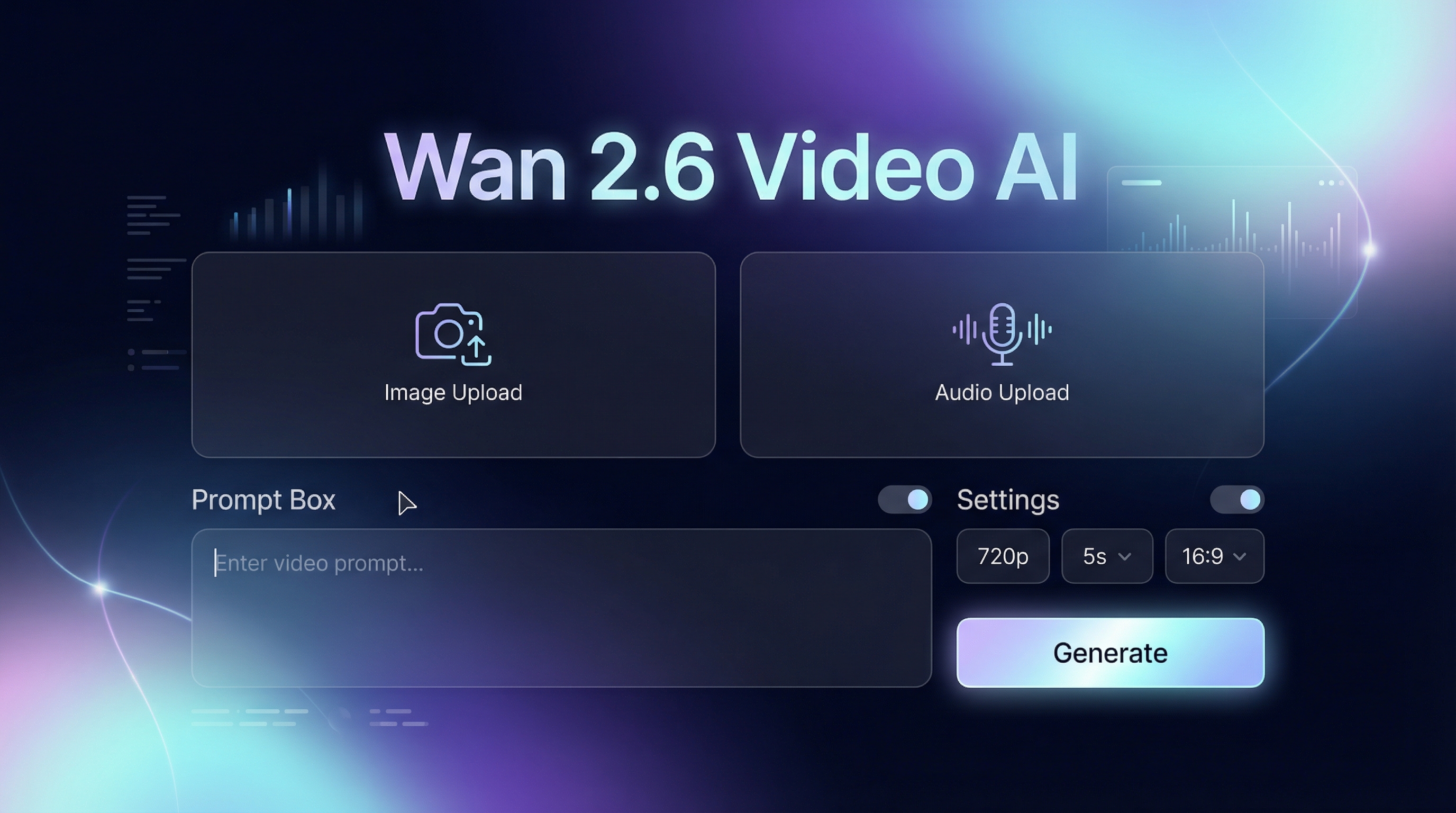
Go to Wan 2.6 video and you’ll see a generator panel with upload areas and a prompt box.
2) Choose your input type: text or image
You have two main routes:
- Wan 2.6 text to video: you describe the scene and it generates from scratch.
- Wan 2.6 image to video: you upload an image and animate it with a prompt.
If you’re brand-focused (product, character identity, consistent look), image-to-video is usually easier. If you’re exploring ideas, text-to-video is great.
3) Set your options (fast defaults that usually work)
In “More Options,” you’ll likely see:
- Resolution: Start at 720p
- Duration: Start at 5s
- Ratio: Start at 16:9 (unless you’re making Shorts/Reels)
Why those defaults? Because they keep iteration fast. The fastest way to get a good result is to generate multiple drafts quickly.
4) Add audio (optional)
If there’s an audio upload option (often MP3):
- Use audio when the rhythm matters (dance, mood pacing, beats)
- Skip audio for your first drafts if you want to test visuals quickly
5) Generate
Click generate and treat the result as a draft. If your first output is “almost right,” that’s normal.
The win condition is not “perfect on the first try.” The win condition is: you can get to good results reliably by iterating.
How to Use Wan 2.6 Text to Video (Best Practices)
Text-to-video is powerful, but it’s also where people accidentally overload the model.
A prompt formula that actually works
Use this structure for Wan 2.6 prompts:
Subject + setting + action + camera + lighting + style + constraints
Here’s what that looks like in one line:
A single subject in a clear place doing one action. Then tell the camera what to do. Then mood. Then style. Then what to avoid.
Example: clean cinematic text-to-video prompt
Here’s a simple, stable starter Wan 2.6 prompt:
Prompt: A lone traveler in a foggy pine forest at dawn, slow walking forward. Camera: medium shot, gentle tracking forward, slight handheld realism. Lighting: soft sunrise through mist, cinematic contrast. Style: realistic film look, natural colors. Avoid: text, logos, flicker, distorted hands, extra limbs.
3 quick ways to improve text-to-video results
- Reduce ambiguity
- One main subject is better than “a group of people” when you’re learning.
- Use camera language
- “wide shot,” “close-up,” “tracking,” “dolly-in,” “static shot,” “slow pan.”
- Add constraints
- “no text,” “no subtitles,” “stable face,” “no flicker.”
These lines look small, but they prevent big problems.
How to Use Wan 2.6 Image to Video (Best Practices)
Image-to-video is the easiest way to get “I meant this exact subject” results.
Choose the right starting image
Pick images with:
- A clear subject silhouette
- Good lighting
- Minimal clutter
- A readable face (if it’s a character) and visible product edges (if it’s an item)
If you upload a messy image, the model has to guess what matters—and guessing is where things break.
Prompt motion without breaking your image
Start small. Big motion is where most artifacts happen.
Good first motions:
- subtle head turn
- blinking
- hair sway
- fabric movement
- slow camera push-in
- slow pan
Then, once you get stability, increase motion.
Example: product image-to-video prompt
Prompt: Animate this product with a slow cinematic camera push-in, gentle light reflections on the surface, clean background, smooth motion. Style: premium ad look. Avoid: warping, extra objects, text, logos, flicker.
If you’re using Wan 2.6 image to video for ads, the key is “premium simplicity.”
Wan 2.6 Prompt Guide: Copy-Paste Templates
Below are templates you can reuse. Swap the bracketed parts and keep the structure.
Template 1: Cinematic shot
Wan 2.6 prompt: A [single subject] in [clear setting], [one action]. Camera: [shot type], [slow movement]. Lighting: [mood], [time of day]. Style: cinematic, realistic, natural colors. Avoid: text, logos, flicker, warped faces, extra limbs.
Template 2: Product ad
Wan 2.6 prompt: A clean product ad shot of [product] on [simple background]. Camera: slow dolly-in, subtle rotation, smooth stabilization. Lighting: soft studio light, premium reflections. Style: high-end commercial look. Avoid: text, logos, distortion, extra objects, jitter.
Template 3: Anime / stylized
Wan 2.6 prompts: An anime-style [character] in [scene], [action]. Camera: [shot], [slow pan]. Lighting: [mood], soft shading, consistent outlines. Style: clean anime keyframe look. Avoid: face warping, inconsistent line art, random text, flicker.
Template 4: Social hook (fast)
Wan 2.6 prompt: A bold close-up of [subject] doing [simple action] with strong lighting and high contrast. Camera: quick push-in, stable framing. Style: modern social video look. Avoid: jitter, blur, text, warped hands.
Settings That Matter Most (So You Don’t Waste Credits)
When you’re learning a new model, the smartest move is to keep settings conservative until your prompt is working.
Resolution
- Start at 720p for drafts.
- Upgrade only when your prompt is stable and you like the motion.
Duration
- 5 seconds is ideal for testing.
- Go longer only when your scene can hold up without drifting.
Aspect ratio
- 16:9 for YouTube, websites, landscape ads
- 9:16 for TikTok/Reels/Shorts (if available)
Audio upload
- Helpful when timing matters.
- Optional when you’re focused on visuals.
In practice: get a good 5s first, then scale up.
Troubleshooting: Fix the Most Common Wan 2.6 Issues
Even good prompts can fail in predictable ways. Here are fast fixes.
Problem: flicker / jitter
Try:
- “stable shot, smooth motion, no flicker”
- Reduce camera movement
- Use slower actions
Problem: strange hands / faces
Try:
- Avoid close-ups of hands
- Reduce motion intensity
- Add: “stable facial features, natural expression”
Problem: scene drift (it forgets the subject)
Try:
- Repeat your subject once: “the same [subject] stays centered”
- Remove extra details that introduce new objects
Problem: low coherence (everything looks random)
Try:
- Fewer ideas per prompt
- One subject + one action
- Clear setting
Most “bad outputs” come from prompts that are doing too much at once.
Mini Workflow: From Idea → Good Output in 10 Minutes
If you want a repeatable process, use this:
- Write 3 directions (three different prompt ideas)
- Generate 3–6 quick 5s tests
- Pick the best one
- Refine prompt (camera + constraints)
- Generate a final version
This is how creators get consistent wins: not by finding a magical prompt, but by using a fast iteration loop.
FAQ (Viewer Questions You’ll Probably Have)
Is Wan 2.6 better for text-to-video or image-to-video?
Both work, but if you need control over identity (a product or a specific character), image-to-video is usually easier. If you want exploration and concept testing, text-to-video is great.
What makes a “good” Wan 2.6 prompt?
A good prompt is specific but not overloaded: one subject, one action, clear camera guidance, and strong constraints.
How do I keep characters consistent across clips?
Use the same reference image (image-to-video), keep the style instructions consistent, and avoid changing too many variables at once. Consistency is a workflow, not a single setting.
What settings are best for ads vs cinematic shots?
Ads usually do best with simpler motion, clean lighting, and tight subject control. Cinematic shots can handle more atmosphere and camera movement—just increase complexity gradually.
Conclusion: When to Use Wan 2.6 (and Your Next Step)
Wan 2.6 shines when you want short, controllable clips that you can iterate quickly—whether you’re making ads, storyboards, cinematic mood shots, or social content.
Your best next step is simple:
- Start with a clear 5-second concept
- Use a structured Wan 2.6 prompt
- Add constraints to stop the common failures
- Iterate fast until you hit a version you like
When you’re ready, open the Wan 2.6 generator and test your first three prompt directions. The model gets dramatically easier once you treat generation like drafting instead of a one-shot wish.