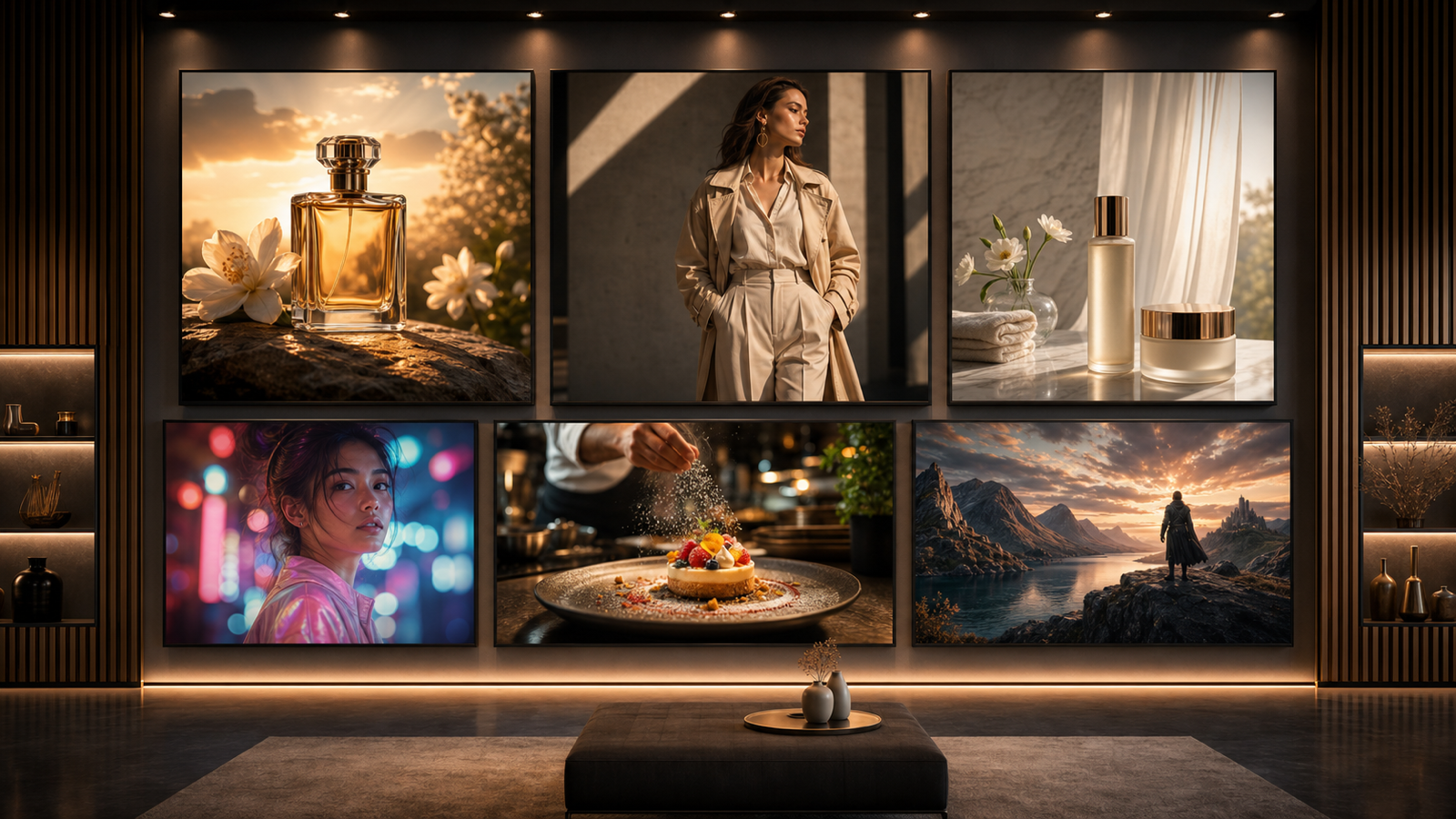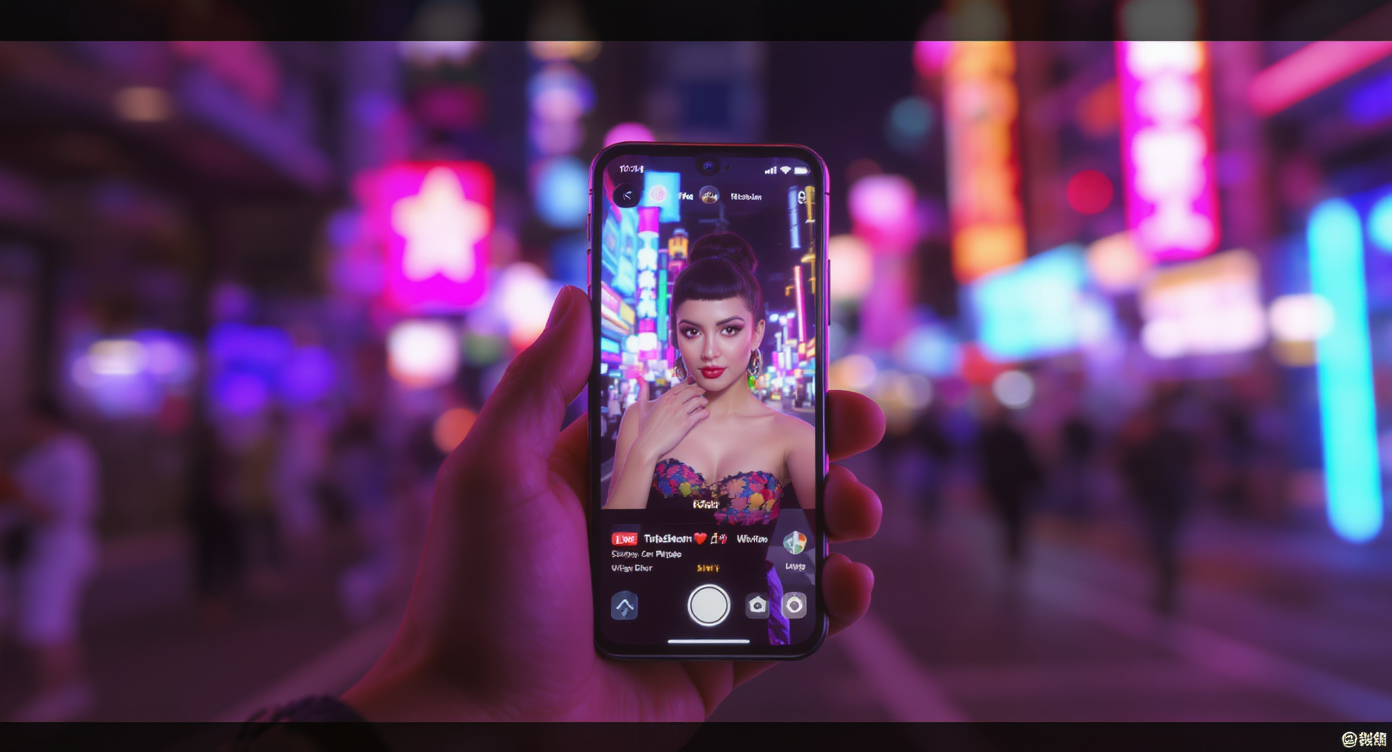
If you’ve ever paused mid-scroll on TikTok or YouTube Shorts because a video just looked different — crisp, cinematic, perfectly timed — there’s a good chance it wasn’t shot on a $10k camera. It might have been made with the google veo 3 ai video generator.
Veo 3 is one of the most advanced AI video models out there, capable of producing short clips that look like they were shot by a professional film crew. And the best part? You can access it right now, without downloading anything, using Chat4o’s web-based tools.
In this guide, I’ll show you exactly how to create AI short video with Veo3 for TikTok & YouTube — whether you’re building a scene from scratch or breathing life into a still image. We’ll also talk about writing prompts that go viral, optimizing for short-form platforms, and even trying out alternative AI video models when you want to switch things up.
Why Veo 3 Is a Game-Changer for Short-Form Creators
TikTok and YouTube Shorts aren’t just about posting “something” — they’re about stopping the scroll. That’s where Veo 3 shines.
When you create AI short video with Veo3 for TikTok & YouTube, you’re getting:
- Cinematic clip lengths (8–12 seconds) that match short-form watch habits.
- Advanced realism — accurate physics, natural lighting, and smooth camera moves.
- Creative flexibility — start from pure text or animate a still image into a living scene.
Veo 3’s output isn’t just “good for AI” — it’s genuinely production-quality, ready to stand out in a sea of mobile-shot videos.
Choosing Your Workflow: Text or Image?
Before you click “generate,” decide how you want to start:
-
Image-to-Video: Have a great still photo you wish could move? Maybe it’s a product shot, a character design, or a thumbnail. Upload it into Chat4o’s Image-to-Video generator and let Veo 3 handle the animation.
-
Text-to-Video: Want to start from a blank canvas? Use Chat4o’s Text-to-Video generator. No image required — just your imagination and a prompt.
Both routes plug directly into the google veo 3 ai video generator, so you’ll get the same high-quality results either way.
Step-by-Step: Creating Shorts with Chat4o’s Veo 3 Access
Option A: Text to Video
- Head to Text-to-Video.
- Select Veo3 as the model version.
- Write a vivid, specific prompt:
Subject → Action → Setting → Camera Angle → Lighting → Audio → Duration
- Pick 9:16 vertical for TikTok/YouTube Shorts.
- Click generate, preview the magic, and download.
Option B: Image to Video
- Go to Image-to-Video.
- Upload your starting frame.
- Write a motion-focused prompt describing the action or mood.
- Choose vertical ratio (9:16) and enable audio if you want built-in sound.
- Generate, review, and download.
Writing Prompts That Spark Engagement
Your prompt is your production brief. A good one gives Veo 3 everything it needs to nail the shot in a few seconds.
When you create AI short video with Veo3 for TikTok & YouTube, keep these tips in mind:
- Lead with movement — “A skateboarder flips a board mid-air” beats “Skateboard scene.”
- Set the mood — “Golden hour” feels warm, “fluorescent rain-soaked street” feels cool and moody.
- Add sensory depth — mention sounds, textures, or weather to make the scene feel alive.
- Stay focused — short videos need one strong idea, not three competing ones.
- Match trends — browse TikTok or Shorts before you create to align your visual style with what’s gaining traction.
Optimizing for TikTok & YouTube Shorts
The difference between a “good” AI video and one that pops off is often just formatting and presentation.
- Vertical format (9:16) is non-negotiable for these platforms.
- Aim for 7–12 seconds — enough time to convey the scene without risking a drop in retention.
- Add trending sounds or voiceovers in post-edit before uploading.
- Use captions; many viewers watch without sound.
These tweaks help the google veo 3 ai video generator content blend seamlessly into short-form feeds while still standing out visually.
Alternative Models for Different Styles
Veo 3 is an all-rounder, but sometimes you’ll want a different flavor:
- Wan 2.2 — perfect for stylized, anime-inspired, or artistic motion.
- Vidu 2.0 — great for realistic storytelling and more subtle camera work.
Mixing in these models can help you keep your feed visually fresh without abandoning your core style.
Prompt Examples You Can Copy-Paste
Here are a few ready-made ideas to try right now:
- A skateboarder rides through a neon-lit alley, sparks flying from wheels, synthwave soundtrack, slow-motion tracking shot.
- Pouring latte art in a cozy café, steam curling in golden morning light, handheld close-up, soft piano background music.
- Golden retriever leaps into a crystal-clear lake, water droplets frozen mid-air, summer sun glistening.
Drop these into Chat4o’s Text-to-Video generator or Image-to-Video generator and you’ll see how quickly Veo 3 can deliver scroll-stopping content.
Mistakes That Hold Creators Back
- Overcomplicating prompts — too many unrelated ideas can confuse the model.
- Skipping vertical format — horizontal videos flop in short-form feeds.
- Ignoring sound — even the best visuals can feel flat without audio cues.
Wrapping It Up
The combination of Veo 3’s cinematic AI and Chat4o’s seamless interface makes it easier than ever to create AI short video with Veo3 for TikTok & YouTube that can compete with — and often outshine — real-camera productions.
If you’re ready to experiment, start here:
- Text-to-Video Veo 3 for building scenes from scratch.
- Image-to-Video Veo 3 for bringing stills to life.
And don’t be afraid to explore Wan 2.2 or Vidu 2.0 when you want something different.
Your next viral short might just be a prompt away.